Code Debugging 101: How to Find and Fix Bugs Faster

Quick Start: The Debugging Cheat Sheet
Before we get into the heavy lifting, here is a fast way to handle most bugs you'll encounter daily. If your code is acting up, follow this sequence:- Isolate the problem: Strip away everything that isn't directly related to the crash. Does it still happen with a simple input?
- Check the logs: Stop guessing. Look at the stack trace. It usually tells you exactly which line failed and why.
- Verify your assumptions: You think the variable is a string? Print it. You think the loop is running? Add a counter.
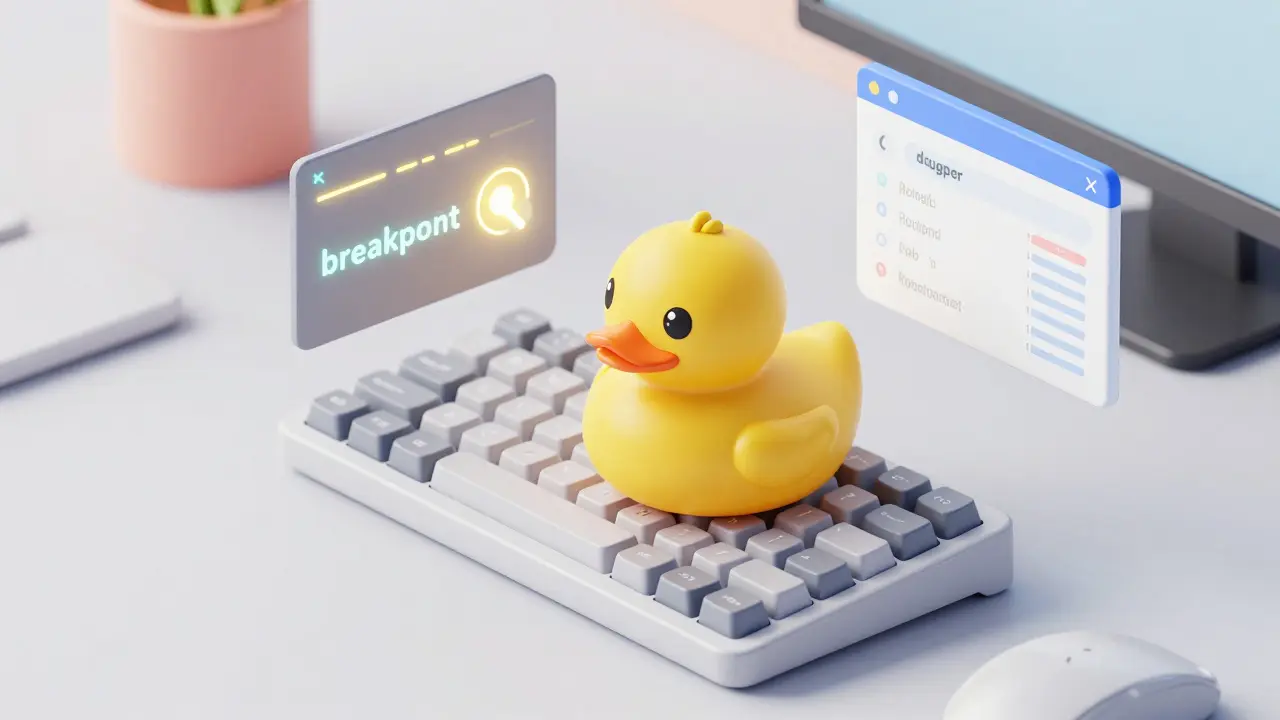
- Rubber duck it: Explain the logic out loud to a colleague (or a literal rubber duck). The act of explaining often reveals the gap in logic.
Understanding the Enemy: Types of Bugs
Not all bugs are created equal. If you try to fix a logic error using the same method you use for a syntax error, you'll waste hours. You need to categorize the problem first.First, we have Syntax Errors. These are the easiest to catch because the Compiler or interpreter refuses to run the code. Think of this as a grammatical mistake in a sentence; the computer simply doesn't understand the command. Examples include missing brackets in Java or incorrect indentation in Python.
Next are Runtime Errors. The code looks perfect, but it crashes while running. A classic example is the "Null Pointer Exception"-trying to access data from a variable that doesn't actually exist yet. These usually happen because of unexpected user input or failing network connections.
The most dangerous are Logic Errors. The program runs without crashing, but it gives the wrong answer. Your app doesn't crash, but it tells the user that 2 + 2 = 5. These are nightmares because there is no error message to guide you; you have to manually trace the data flow to find where the math went wrong.
| Bug Type | Detection Time | Symptom | Difficulty to Fix |
|---|---|---|---|
| Syntax | Immediate | Red squiggly lines / Build failure | Easy |
| Runtime | During Execution | Crash / Exception / Freeze | Medium |
| Logic | During Testing/QA | Wrong output / Weird behavior | Hard |
Mastering Your Toolkit: From Print Statements to IDEs
Most beginners start with "Print Debugging." You sprinkleconsole.log() or print() statements everywhere to see where the code stops working. While this is a great way to start, it is slow and clutters your codebase. If you're working on a professional project, you need something more powerful.
Enter the Debugger. This is a specialized tool integrated into most Integrated Development Environments (IDEs) like Visual Studio Code or IntelliJ IDEA. A debugger allows you to pause time. By setting a Breakpoint, you tell the computer: "Stop exactly here and let me look around."
Once paused, you can perform a Step Over to move to the next line or a Step Into to go inside a function call. This lets you watch variables change in real-time. For example, if a loop is supposed to run 10 times but stops at 3, you can see exactly which condition became false at the third iteration. It turns guesswork into a science.
The Scientific Method of Debugging
When you're faced with a bug that doesn't make sense, stop changing code randomly. This is called "Shotgun Debugging," and it often introduces three new bugs for every one you fix. Instead, apply a scientific approach:- Observe: Reproduce the bug consistently. If you can't make it happen on command, you can't prove you've fixed it.
- Hypothesize: Based on the evidence, make an educated guess. "I bet the API is returning an empty array instead of null."
- Experiment: Change one thing-and only one thing-to test that hypothesis. Add a check for the empty array.
- Analyze: Did the behavior change? If yes, you found the root cause. If no, revert the change and form a new hypothesis.
This disciplined loop prevents the common trap of "fixing" a symptom while leaving the actual disease in the code. For instance, if a variable is null, adding a null-check stops the crash (fixing the symptom), but figuring out why the variable was null in the first place fixes the actual bug.
Advanced Strategies for Complex Systems
As your projects grow, bugs become "Heisenbugs"-problems that seem to disappear or change behavior when you try to study them. These often happen in Multithreading or asynchronous environments where timing is everything.To fight these, use Logging Frameworks. Unlike print statements, professional logs (like Log4j or Winston) can be categorized by severity: INFO, WARN, and ERROR. By adjusting the log level, you can see a high-level flow of the app or zoom in on every tiny detail of a specific transaction without restarting the server.
Another pro move is Regression Testing. Whenever you fix a major bug, write a Unit Test that specifically targets that bug. This ensures that future updates don't accidentally bring the same error back from the dead. If you're using Jest for JavaScript or PyTest for Python, this becomes a seamless part of your workflow.
Psychology and the Debugging Mindset
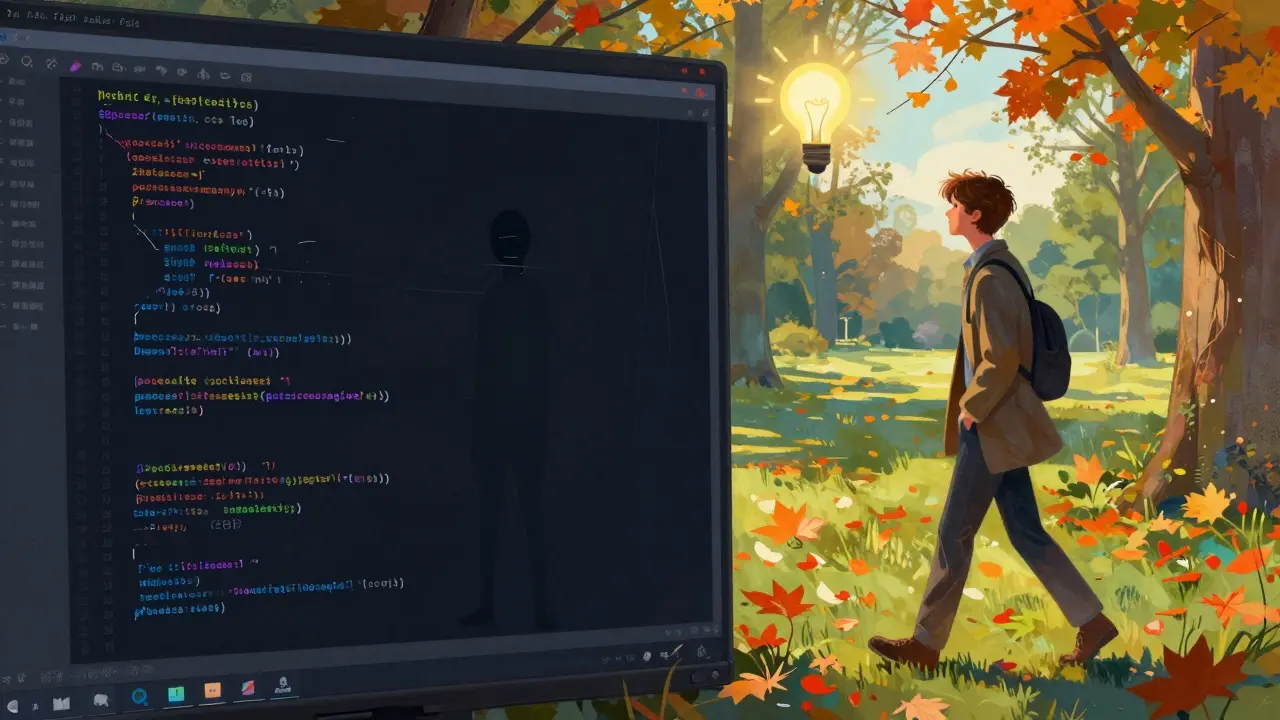
The hardest part of debugging isn't the technical skill; it's the mental fatigue. It's easy to get tunnel vision, where you're convinced the bug is in the database, while it's actually a simple typo in your frontend CSS.The best tool for this is the "Walk Away" method. When you've been staring at a block of code for two hours, your brain stops seeing what is actually there and starts seeing what it expects to be there. Get up, grab a coffee, or take a walk. You'll often find that the solution hits you the moment you stop thinking about the problem. This is because your subconscious continues to process the pattern while your conscious mind rests.
What is the difference between debugging and testing?
Testing is the process of finding bugs (the "what" is broken), while debugging is the process of finding the cause and fixing it (the "why" and "how"). You test a feature to see if it fails; you debug it to make it work.
Should I always use a debugger instead of print statements?
Not necessarily. Print statements are great for quick checks or for debugging timing-sensitive issues where pausing the code with a breakpoint would actually change the behavior of the program (common in game development or network sockets).
How do I stop making the same bugs over and over?
Start a "Bug Journal." Note down the bug, what caused it, and how you fixed it. After a month, you'll see patterns in your mistakes, which tells you exactly which parts of the language you need to study more deeply.
What are the best tools for debugging a web application?
For the frontend, Chrome DevTools is the gold standard for inspecting the DOM and debugging JavaScript. For the backend, using a combination of an IDE debugger (like VS Code) and a log management system (like ELK stack) is the most effective approach.
What is a stack trace and how do I read it?
A stack trace is a report that shows the active stack frames at a certain point in time. To read it, start from the bottom (where the program started) and move up to the top (where the crash happened). Look for the first line that references a file you actually wrote, rather than a library file.
Next Steps: Leveling Up
If you've mastered the basics, try challenging yourself with these scenarios:- Static Analysis: Use tools like ESLint or SonarQube to find bugs before you even run the code.
- Pair Programming: Have someone else watch you debug. The social pressure often makes you more methodical and less likely to guess.
- Profiling: Start looking for "performance bugs." Your code might work, but if it takes 10 seconds to load a list of 5 items, that's a bug in efficiency.